

An AI coding agent such as Claude Code is useful because it does more than suggest code. It runs commands, installs packages, reads files and edits them. That is exactly what makes it fast, and it is also why it is worth thinking about where it runs.
If the agent runs directly on your developer machine, it runs with your permissions. In principle it can reach everything you can: SSH keys in ~/.ssh, cloud credentials, browser data, other projects on disk and your whole local network. No bad intent on the agent's part is needed. It is enough that a dependency behaves unexpectedly, or that some text in a repository tries to steer the agent in a different direction than the one you asked for.
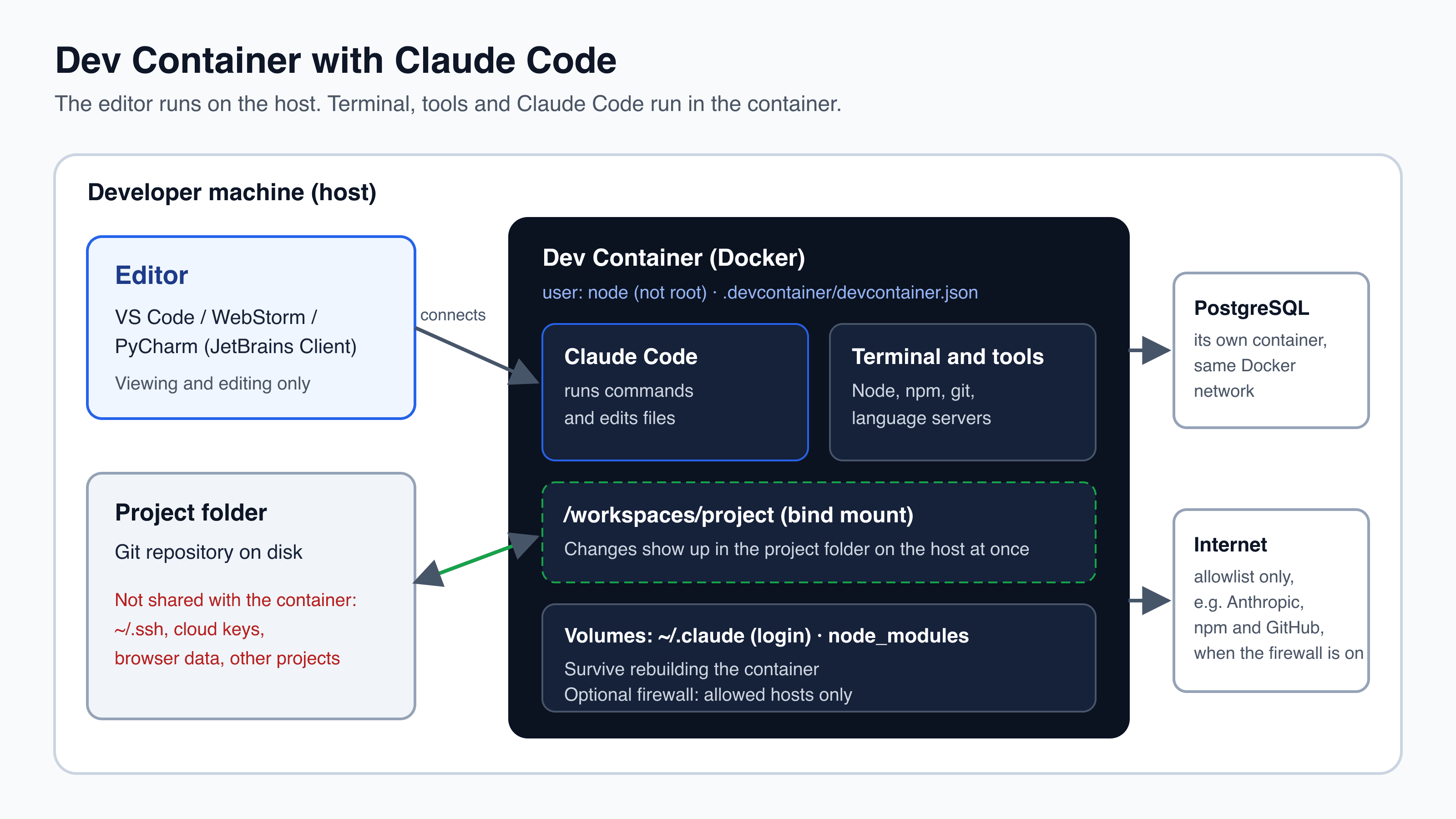
A Dev Container moves the agent into a confined Docker container. The editor stays on your machine, while the terminal, tools and Claude Code run in the container and only see the project folder. In this post we go through the setup with VS Code and the JetBrains IDEs, what it protects against, and what it does not protect against.
What is a Dev Container?
A Dev Container is a development environment described as code. The file .devcontainer/devcontainer.json (optionally with a Dockerfile or a Docker Compose file) describes the image, tools, ports, volumes and the commands to run when the container is created. The format is an open specification at containers.dev, and the file may contain comments (JSON with Comments).
The division of labour looks like this:
- The editor runs on the host. VS Code, WebStorm or PyCharm show and edit the files as usual.
- Everything else runs in the container: the integrated terminal, language servers, build tools, tests and Claude Code.
- The project folder is bind-mounted into the container. Changes the agent makes show up in your local repository at once, and you can review them with
git diffas always.
The rest of the machine is not shared unless you mount it in yourself.
Claude Code in the container
The easiest route is Anthropic's Dev Container Feature. A minimal devcontainer.json can look like this:
{
  "image": "mcr.microsoft.com/devcontainers/base:ubuntu",
  "features": {
    "ghcr.io/anthropics/devcontainer-features/claude-code:1.0": {}
  }
}
Three details are worth knowing (the Claude Code documentation describes them):
- The
:1.0tag pins the install script, not the Claude Code version. The feature always installs the latest release, and Claude Code updates itself in the container. - The feature installs Node.js itself if the base image does not have it.
- To pin the version for reproducible builds, install Claude Code from the Dockerfile with a fixed version instead, and turn off updates.
DISABLE_UPDATES=1blocks both the automatic update andclaude update, so the version only changes when someone edits it in the Dockerfile and rebuilds the container:
FROM mcr.microsoft.com/devcontainers/typescript-node:5.2.3-24-bookworm

# Pinned Claude Code version instead of the feature
ARG CLAUDE_CODE_VERSION=2.1.310
RUN npm install -g @anthropic-ai/claude-code@${CLAUDE_CODE_VERSION}
# No automatic updates and no `claude update`
ENV DISABLE_UPDATES=1
Keep the login across rebuilds
The container's home directory is thrown away when the container is rebuilt, and then you have to sign in again. Claude Code stores the login, settings and history under ~/.claude. The account details and your answer to the question "do you trust the files in this folder?", which Claude Code asks the first time it starts in a project, live instead in the file ~/.claude.json next to it. That is why mounting a volume at ~/.claude is not enough. Also set CLAUDE_CONFIG_DIR to the same path, so .claude.json ends up inside the volume:
"remoteUser": "node",
"mounts": [
  "source=my-project-claude-config,target=/home/node/.claude,type=volume"
],
"containerEnv": {
  "CLAUDE_CONFIG_DIR": "/home/node/.claude"
}Security: what the container does, and what it does not
A container is a good boundary, but it is only as good as its configuration. These are the most important levers:
- Run as an ordinary user. Set
remoteUserto a user without root privileges, for examplenode, and once setup has run, remove the user's passwordless sudo. Many Dev Container images grant it by default, and otherwise the agent can still become root. Claude Code also refuses--dangerously-skip-permissionswhen it runs as root. - Do not mount the host's secrets. No
~/.ssh, no cloud credential files. Use tokens that are scoped to the one repository and expire quickly. - Restrict outbound network traffic. Anthropic's reference container has a firewall script,
init-firewall.sh, that rejects all outbound traffic by default and only allows a list of hosts (Anthropic, npm, GitHub and similar). It requires the container to get theNET_ADMINandNET_RAWcapabilities throughrunArgs.
An excerpt of the principle from our own version of the script, where everything is rejected except replies to allowed connections and traffic to the list of allowed addresses:
# Default deny, then allow replies and the allowlist; reject the rest immediately.
iptables -P INPUT DROP
iptables -P FORWARD DROP
iptables -P OUTPUT DROP
iptables -A INPUT -m state --state ESTABLISHED,RELATED -j ACCEPT
iptables -A OUTPUT -m state --state ESTABLISHED,RELATED -j ACCEPT
iptables -A OUTPUT -m set --match-set allowed-hosts dst -j ACCEPT
iptables -A OUTPUT -j REJECT --reject-with icmp-admin-prohibitedBe honest about the limitation too: the Claude Code documentation itself says that a Dev Container run with --dangerously-skip-permissions does not prevent a malicious project from sending everything accessible inside the container out of the building. That includes Claude Code's own credentials in ~/.claude. So only use the setup with repositories you trust, and keep an eye on what the agent does. The firewall makes it harder to send data to arbitrary hosts, but it cannot stop misuse of the hosts that are on the list.
If you just want fewer questions without turning off safety checks, auto mode is a better first step: a classifier reviews the actions before they run.
Mount or clone: how big is the opening?
So far the project folder has been bind-mounted into the container. That is the practical choice: you edit, run git and review changes on your own machine, while the agent works on the same files in the container. But the mount is also a deliberate opening in the isolation. The agent cannot break out of the container, but it can write every file in the project folder, including files your machine itself runs later:
.git/hooks/and.git/config. Apre-commithook or acore.hooksPathplaced by the agent runs on your machine the next time you rungit committhere.- Editor configuration, such as
.vscode/tasks.jsonand.idea/runConfigurations/, which runs when you start a task or a run configuration locally. - Scripts in
package.json, aMakefileorscripts/, if you run them outside the container.
The risk is limited, because it requires you to run the file on the host yourself. But it is worth knowing, especially when the agent asks fewer questions about permission to access and run files.
The alternative is to clone. Both VS Code (Dev Containers: Clone Repository in Container Volume) and the JetBrains IDEs (Create Dev Container and Clone Sources) can fetch the repository from Git into a Docker volume instead of mounting your local folder. The working copy then exists only in the container, your local folder is not touched, and changes leave the container only through git commit and git push, where they can be reviewed in a pull request. The price is that you work in a separate copy. Only what is committed and pushed comes along, including .devcontainer/. And the JetBrains IDEs reuse the clone volume next time, so a new container can start with an old copy of the code.
If you keep mounting, these measures close most of the gap:
- Mount
.gitread-only in the container (see below). The agent can still change the code, but not hooks or the git configuration.git addandgit committhen run on the host. - Check before you commit on the host, if
.gitis writable:ls .git/hooks | grep -v sampleandgit config --local --list. - Clone instead when the repository is not your own, or when the agent runs with
--dangerously-skip-permissions.
"mounts": [
  "source=${localWorkspaceFolder}/.git,target=${containerWorkspaceFolder}/.git,type=bind,readonly"
]
VS Code
In VS Code you only need Docker and the Dev Containers VS Code plugin. The rest is in devcontainer.json:
- Install Docker, for example Docker Desktop, and the Dev Containers VS Code plugin.
- Open the project folder. VS Code finds
.devcontainer/devcontainer.jsonand offers to reopen the project in the container, or you choose Dev Containers: Reopen in Container in the command palette. - The first time, the image is built. After that, the container starts in a few seconds.
- Open a terminal. It runs in the container, and
claudestarts the agent. The first time, you sign in through the browser, and the login is kept in a volume.
After configuration changes, choose Dev Containers: Rebuild Container. The container is rebuilt, while the login stays in the volume.
JetBrains: WebStorm, PyCharm and Rider
The JetBrains IDEs read the same devcontainer.json (WebStorm, PyCharm and Rider):
- Open
.devcontainer/devcontainer.jsonin the IDE and click the Create Dev Container icon in the left margin. - Choose Mount Sources to work on your local files or Clone Sources to work in a cloned copy (see "Mount or clone" above).
- Choose the IDE, for example WebStorm. When the container is built, the project opens in a new window connected to the container.
- Open the terminal and start
claude, exactly as in VS Code.
Next time, open the container from File → Remote Development → Dev Containers. Because VS Code and the JetBrains IDEs use the same definition, the team can freely choose an editor without changing anything in the project.
A complete example of a Dev Container configuration
Finally, a complete example for the fictitious company Space Travel, whose website is a Next.js frontend and a Strapi CMS in the same repository, with PostgreSQL in Docker. The configuration consists of two files, devcontainer.json and a Dockerfile, and the container:
- builds on a node image with the same version as in production and installs Claude Code at a pinned version in the Dockerfile;
- starts the development databases on the host (
initializeCommand) and attaches the container to the project's Docker network,space-travel-network, so Strapi reaches PostgreSQL under the service namespace-travel-db; - puts
~/.claudeand bothnode_modulesfolders in volumes, so the login survives rebuilds and the Linux packages do not mix with the host's; - uses the same project folder and the same login volume in VS Code, WebStorm, PyCharm and Rider, so you can switch editors without signing in again;
- runs
npm ciin the frontend and backend and then removes the general sudo rule; - forwards ports 3000 (Next.js) and 1337 (Strapi);
- has the firewall as an option, turned on with
ENABLE_FIREWALL=on.
// Space Travel website: Next.js (src/frontend) + Strapi (src/backend) + Claude Code.
// Spec: https://containers.dev/
{
  "name": "Space Travel website (Next.js + Strapi)",
  "build": { "dockerfile": "Dockerfile" },

  // Runs on the host before the container starts: the dev and test Postgres from
  // docker-compose.dev.yml. This also creates space-travel-network, which the container joins.
  "initializeCommand": "docker compose -f docker-compose.dev.yml up -d",
  "runArgs": [
    "--network=space-travel-network",
    // Only needed for the optional firewall (ENABLE_FIREWALL=on).
    "--cap-add=NET_ADMIN",
    "--cap-add=NET_RAW"
  ],

  // Claude Code is installed at a pinned version in the Dockerfile (DISABLE_UPDATES=1), not by the feature.
  // The same path in VS Code and JetBrains, so `claude --continue` finds sessions from both editors.
  "workspaceMount": "source=${localWorkspaceFolder},target=/workspaces/space-travel,type=bind",
  "workspaceFolder": "/workspaces/space-travel",

  "remoteUser": "node",
  "mounts": [
    // Claude Code login, settings and sessions survive rebuilds. A fixed name, shared by VS Code and JetBrains.
    "source=space-travel-claude-config,target=/home/node/.claude,type=volume",
    // Linux node_modules stay out of the host bind mount (faster on macOS, host installs keep working).
    "source=space-travel-frontend-node_modules-${devcontainerId},target=${containerWorkspaceFolder}/src/frontend/node_modules,type=volume",
    "source=space-travel-backend-node_modules-${devcontainerId},target=${containerWorkspaceFolder}/src/backend/node_modules,type=volume"
  ],
  "containerEnv": {
    "CLAUDE_CONFIG_DIR": "/home/node/.claude",
    // Postgres by service name on space-travel-network. Environment variables win over src/backend/.env.
    "DATABASE_HOST": "space-travel-db",
    "DATABASE_PORT": "5432",
    "TEST_DATABASE_HOST": "space-travel-db-test",
    "TEST_DATABASE_PORT": "5432",
    // Strapi runs in the same container.
    "STRAPI_URL": "http://localhost:1337",
    "STRAPI_PUBLIC_URL": "http://localhost:1337",
    "STRAPI_TELEMETRY_DISABLED": "true",
    // "on": restrict outbound traffic to an allowlist on every start (.devcontainer/init-firewall.sh,
    // installed as /usr/local/bin/project-firewall.sh).
    "ENABLE_FIREWALL": "off"
  },

  "forwardPorts": [3000, 1337],
  "portsAttributes": {
    "3000": { "label": "Next.js", "onAutoForward": "notify" },
    "1337": { "label": "Strapi", "onAutoForward": "notify" }
  },

  // Volume ownership, npm ci in both apps, then removes node's general sudo (see the script).
  "postCreateCommand": ".devcontainer/post-create.sh",
  "postStartCommand": "if [ \"$ENABLE_FIREWALL\" = on ]; then sudo /usr/local/bin/project-firewall.sh; fi",
  "waitFor": "postStartCommand",

  "customizations": {
    "vscode": {
      "extensions": ["dbaeumer.vscode-eslint", "esbenp.prettier-vscode", "vitest.explorer"]
    },
    "jetbrains": {
      "backend": "WebStorm"
    }
  }
}# Space Travel dev container: Node as in production, Claude Code at a pinned version,
# and the tools for the optional egress firewall.
FROM mcr.microsoft.com/devcontainers/typescript-node:5.2.3-24-bookworm
RUN apt-get update && apt-get install -y --no-install-recommends \
iptables ipset iproute2 dnsutils aggregate jq \
&& apt-get clean && rm -rf /var/lib/apt/lists/*
# node gets the uid of the host user (`id -u` on the host), so it can write the bind-mounted
# project on Colima, which shows files with the host owner. Harmless when the uids already match.
ARG USER_UID=501
RUN usermod -u "${USER_UID}" node \
&& find / -xdev -uid 1000 -exec chown -h node {} +
# Claude Code changes only when a developer changes this version and rebuilds the container.
ARG CLAUDE_CODE_VERSION=2.1.310
RUN npm install -g @anthropic-ai/claude-code@${CLAUDE_CODE_VERSION} && npm cache clean --force
# Blocks auto-update, `claude update` and `claude install`, so the version stays the one above.
ENV DISABLE_UPDATES=1
# Mount point of the Claude config volume. A new, empty volume takes this owner, so node can save its login.
RUN install -d -m 0700 -o node -g node /home/node/.claude
# The firewall script is the only thing node may run as root without a password.
COPY init-firewall.sh /usr/local/bin/project-firewall.sh
RUN chmod 0755 /usr/local/bin/project-firewall.sh \
&& echo "node ALL=(root) NOPASSWD: /usr/local/bin/project-firewall.sh" > /etc/sudoers.d/node-firewall \
&& chmod 0440 /etc/sudoers.d/node-firewall# Build and start the container without an editor (requires Docker)
npx @devcontainers/cli up --workspace-folder .
# Run a command in it, e.g. the Claude Code version
npx @devcontainers/cli exec --workspace-folder . claude --versionThe commands above use the Dev Containers CLI, the reference implementation of the Dev Container specification. npx fetches and runs the CLI from npm without installing it globally. up builds the image and starts the container from .devcontainer/devcontainer.json, and --workspace-folder . sets the project folder the configuration belongs to. With exec you run a command in the running container. It is a quick way to try the configuration without an editor, and the same definition is used unchanged when the project is opened in VS Code or WebStorm.
After the first start, it is worth checking the setup in the container's terminal:
idshows the usernode, andsudo -n truefails. The agent can then neither become root nor turn off the firewall.- The databases can be reached under their service names, and the frontend and backend tests run.
- With
ENABLE_FIREWALL=on,curl https://example.comis rejected.
Note that the firewall only limits outbound traffic to a list of allowed hosts. The container can still call npm, GitHub and Anthropic, because otherwise neither package installation, git nor Claude Code could work. That is why the advice from the security section still applies: only use the setup with repositories you trust.
Checklist: what to expect from your Dev Container
- Claude Code runs as an ordinary user: id shows e.g. node, and sudo -n true fails, so the agent cannot become root.
- Your private files are not visible: ~/.ssh, cloud keys (e.g. ~/.aws and ~/.config/gcloud), the keychain and browser data do not exist in the container. Only the project folder is shared.
- Tokens the agent needs are limited to the one repository and expire quickly.
- The login survives rebuilds: ~/.claude lives in a volume, and CLAUDE_CONFIG_DIR points to it.
- With the firewall on, the container can only reach the allowed hosts, e.g. npm, GitHub and Anthropic, and curl https://example.com is rejected.
- The ordinary user cannot remove the firewall rules again: sudo iptables -F fails.
- If the project folder is mounted, .git is read-only in the container, or you check hooks and the git configuration before you commit on your own machine.
- You only use the setup with repositories you trust, and review the agent's changes like any other change.
Conclusion: have a plan for where the agent may work
An AI coding agent is a powerful tool because it acts on its own: it reads files, runs commands and installs packages. It does so with the rights it is given. On your own machine, those are your rights, and then it is about data security, not just productivity.
Without a boundary, an agent can, by mistake, through a malicious dependency or because text in a repository steers it in another direction:
- read private data such as SSH keys, cloud keys, tokens in
.envfiles and browser data, and send it out of the building; - delete or overwrite files outside the project, including other repositories and your documents;
- use your access to push to other repositories, change cloud resources or call internal APIs;
- reach your local network, such as a NAS, the router and databases not meant for programs you do not fully control;
- leave something you run yourself later, such as a git hook or a script in the project;
- install packages and tools that change your machine permanently.
Every developer who uses an AI coding agent should therefore have a deliberate strategy for how the agent is contained. A Dev Container is a simple way to do it: the agent only sees the project folder, runs without root and only reaches the hosts you allow, while your private data stays on your own machine. A virtual machine, a separate user account or a cloud-based development environment can do the same job. What matters is not the tool, but that the boundary is chosen on purpose, described as code and tested.
Give the agent access to the project it is meant to work in, and not to the rest of your machine.
Do you want to run AI coding agents safely?
We are happy to help you find a setup that fits your projects, tools and security requirements. Let us have an informal chat.
- docker
- dev-containers
- claude-code
- sikkerhed
- vscode
- jetbrains